How to keep a character or place consistent across AI clips in YakVid
A recurring presenter, mascot or office should look the same in every scene. Give them a written look and reference images once, then cast them in scenes.
Before you start
- A YakVid account
- A video with at least one scene
Plays silently with captions; the narrated version is on its way.
Transcript
Keep the same person and the same place in every AI clip.
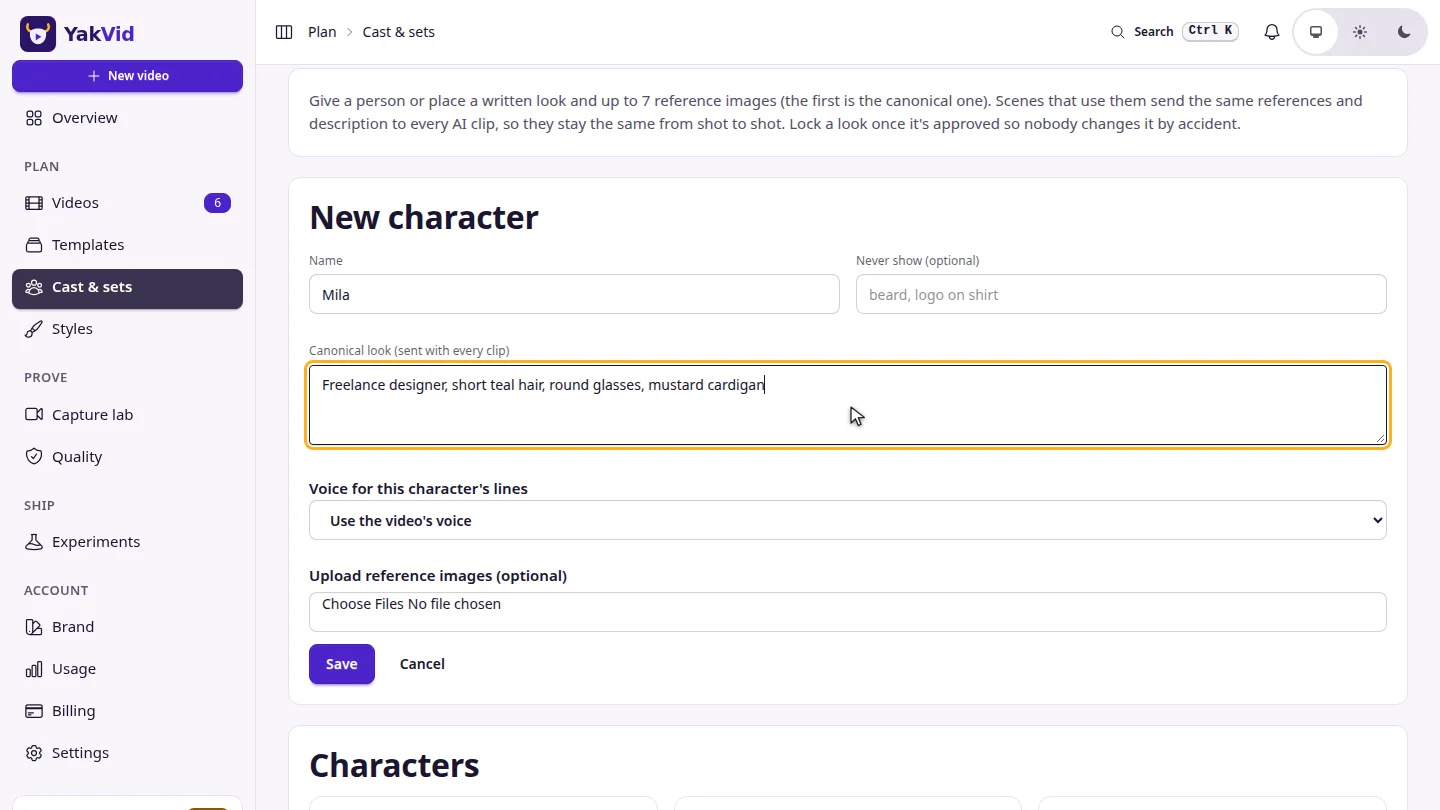
Select New character, name them and describe how they look, then save.
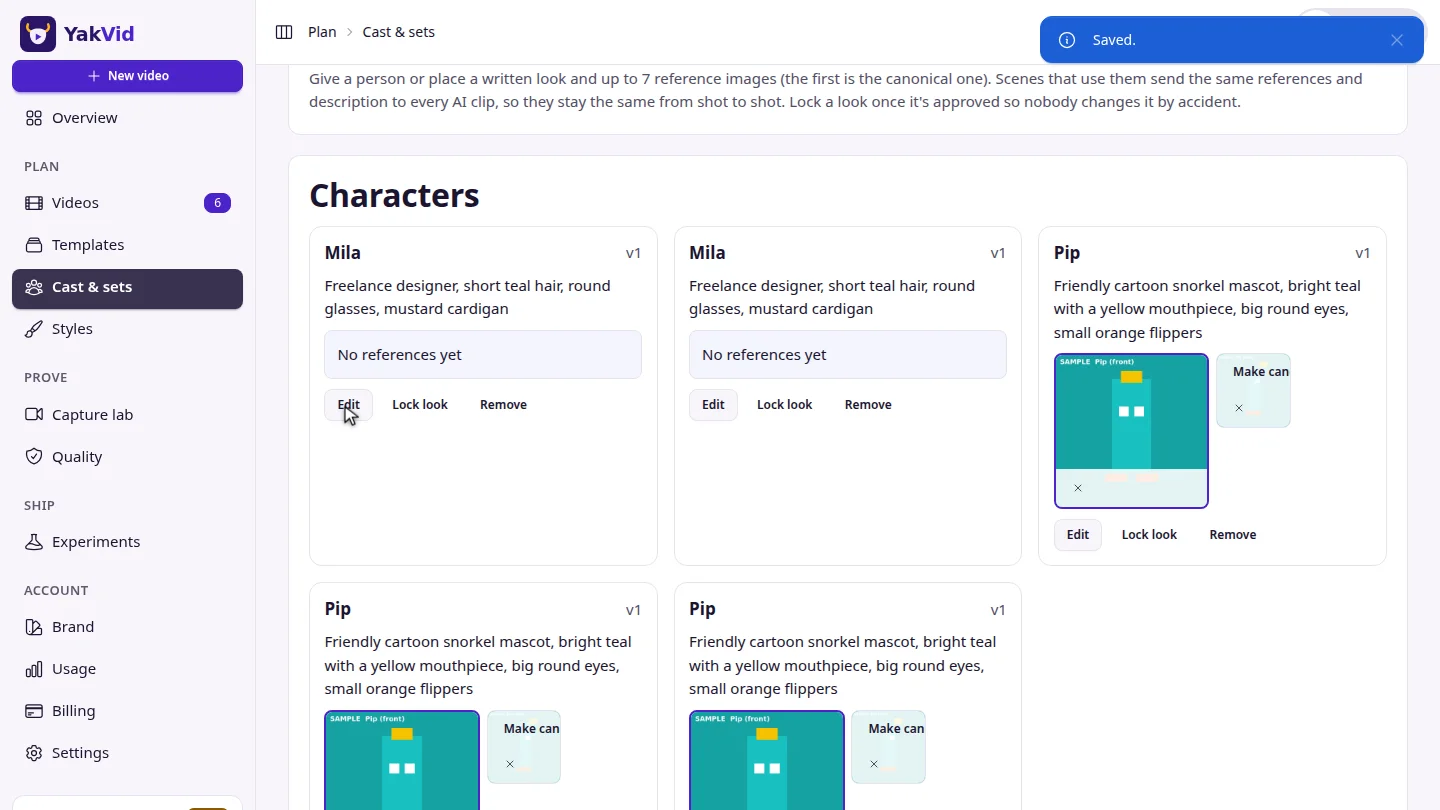
Generate a canonical still, then an angle pack from it. Lock the look so it can't drift.
In the Director, tick the character under Cast in this scene. New clips for that scene use their references.
Steps
Create a character ▶ 0:05
Select New character, enter a name and the Canonical look, optionally upload reference images, and select Save. Use New set for a recurring place.
Build the reference pack ▶ 0:10
Select Generate canonical still, then Generate angle pack for front, three-quarter, side and full-body views. Select Make canonical on the best image, then Lock look.
Cast them in a scene ▶ 0:17
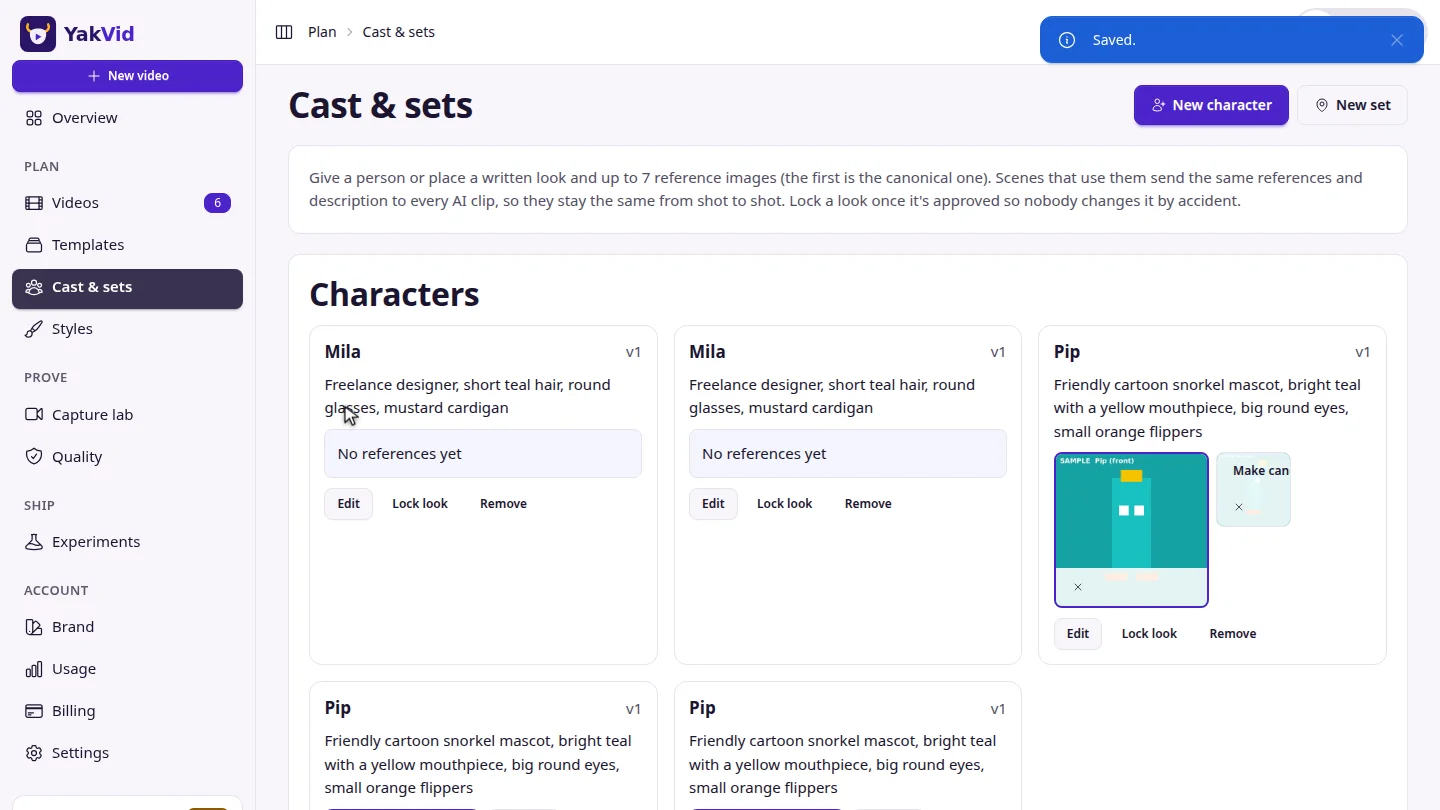
Open a video, select a scene, and under Cast in this scene tick the character and choose a Set. In AI clip, the reference-aware model sends their reference images.
Next steps
Updated 2026-11-06
character consistency consistent character reference images cast location ai video