How to pick or create a style preset in YakVid
A style preset keeps every AI clip and still in one look. Start from a ready-made look, describe your own in plain words, or save the look of a clip you liked.
Before you start
- A YakVid account
Plays silently with captions; the narrated version is on its way.
Transcript
Give every AI clip in your video the same look.
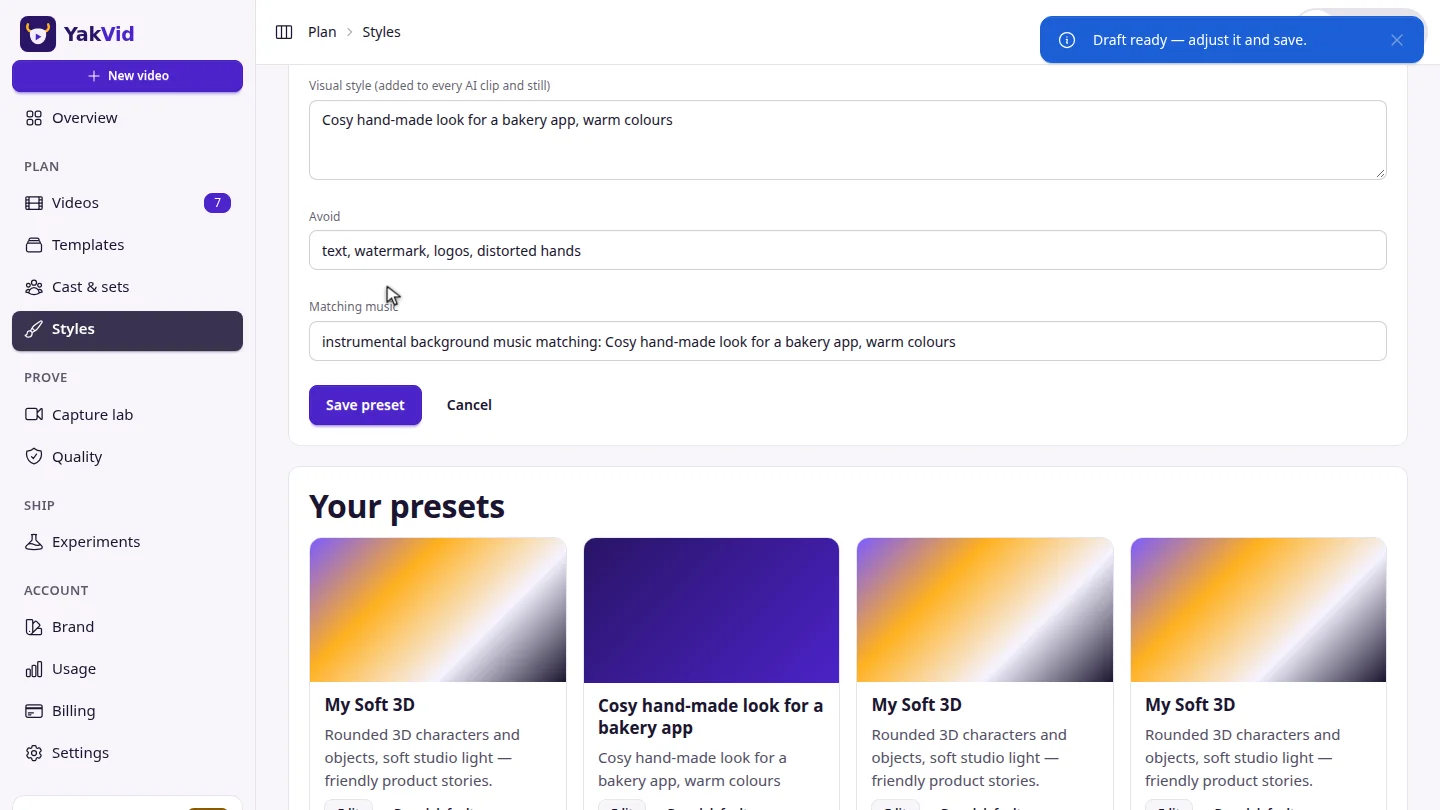
Describe the look you want and select Draft a preset. Review the draft, then save it.
Or copy a starter look, and make any preset your brand default so new videos use it automatically.
Steps
Describe a look ▶ 0:04
Type a description, select Draft a preset, adjust the fields and select Save preset.
Use a starter look ▶ 0:11
Select Copy & edit on a starter look, or Brand default to use it for every new video. In the Director, choose it from Look.
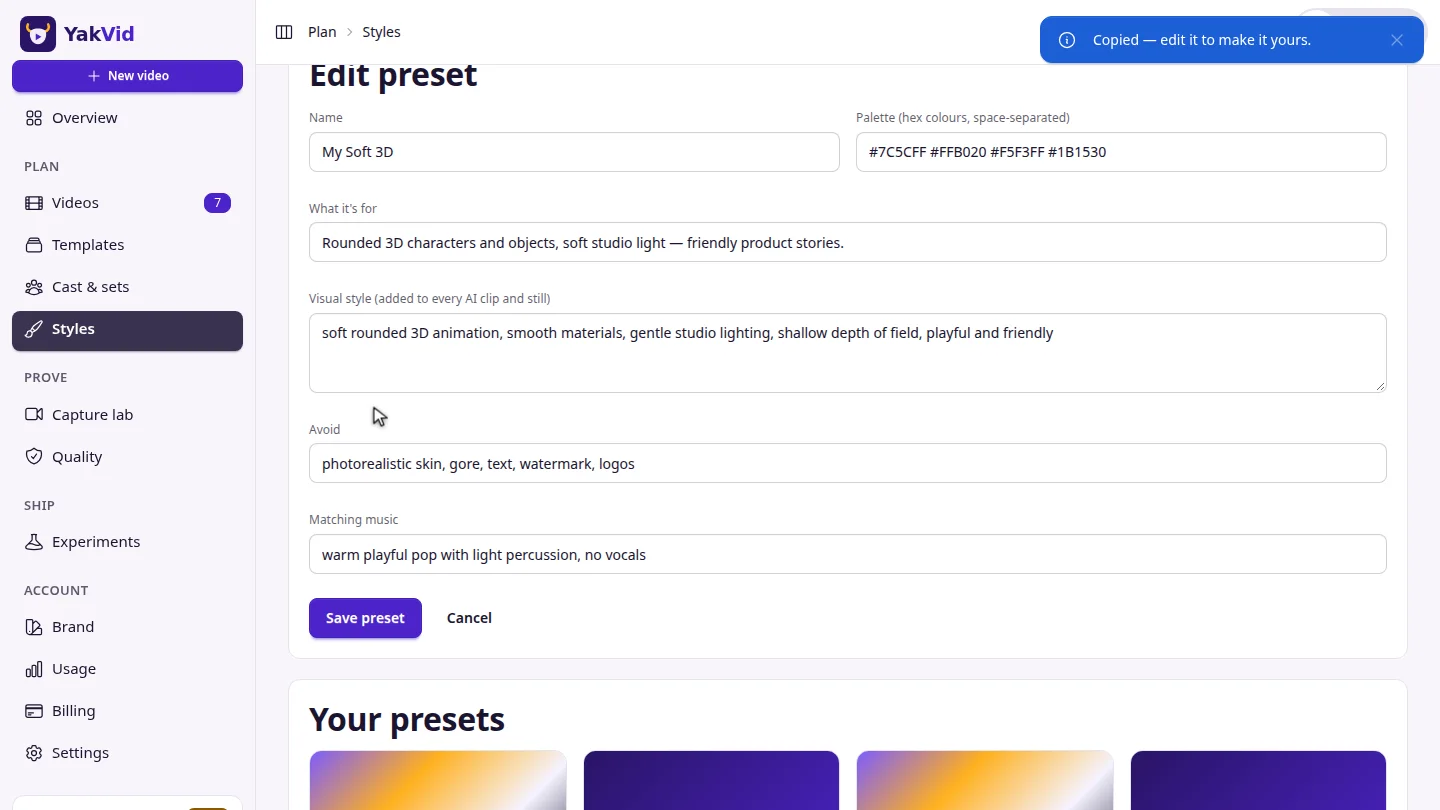
ResultThe preset appears under Your presets, and any video can use it from the Look menu.
Next steps
Updated 2026-11-06
style preset look brand ai video style