How to get client approval on a script or storyboard in YakVid
Checkpoints stop money being spent on AI clips before the words are agreed. Share a review link and your client approves or asks for changes without an account.
Before you start
- A YakVid account with storyboard-approval rights
- A video with a storyboard
Plays silently with captions; the narrated version is on its way.
Transcript
Get a client's sign-off before anything is spent.
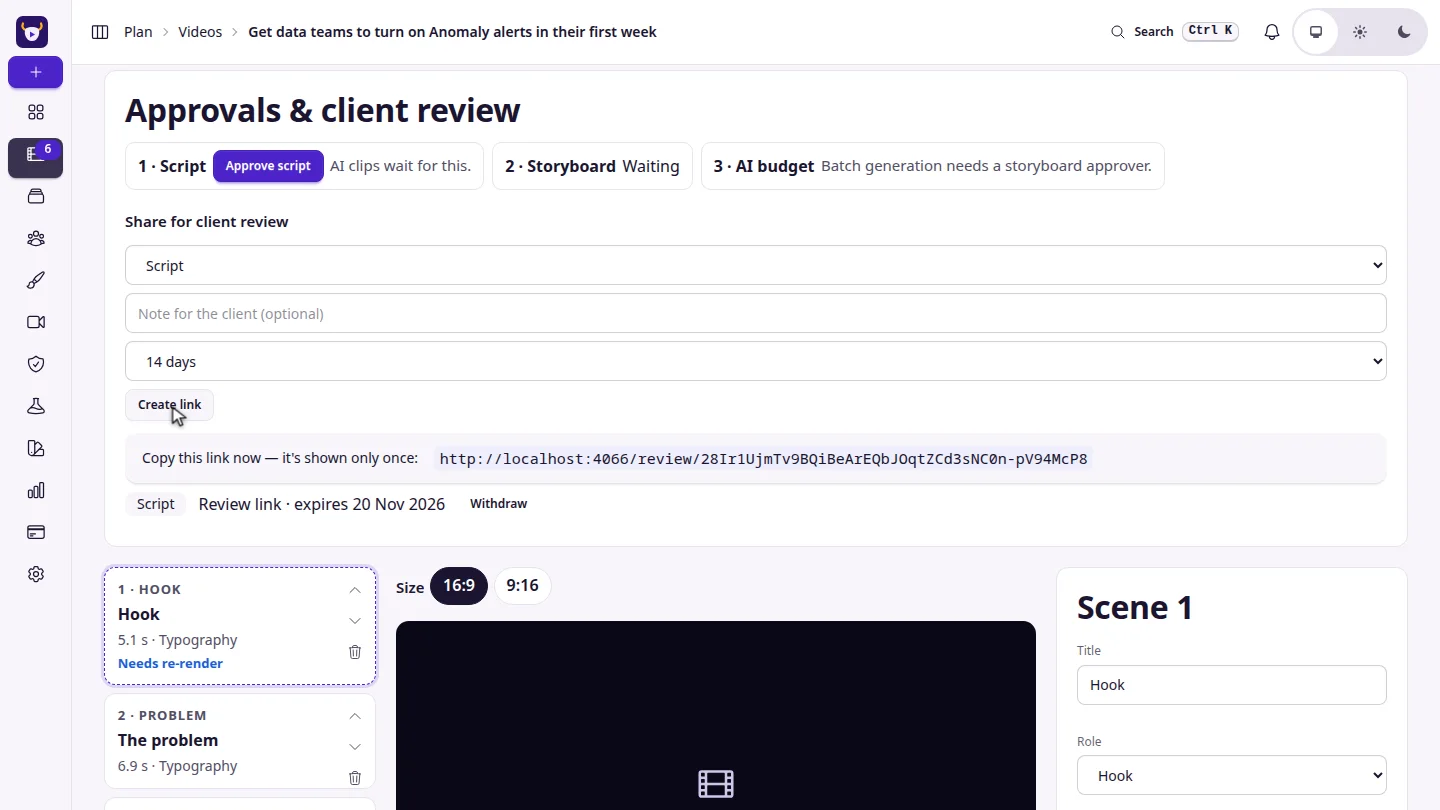
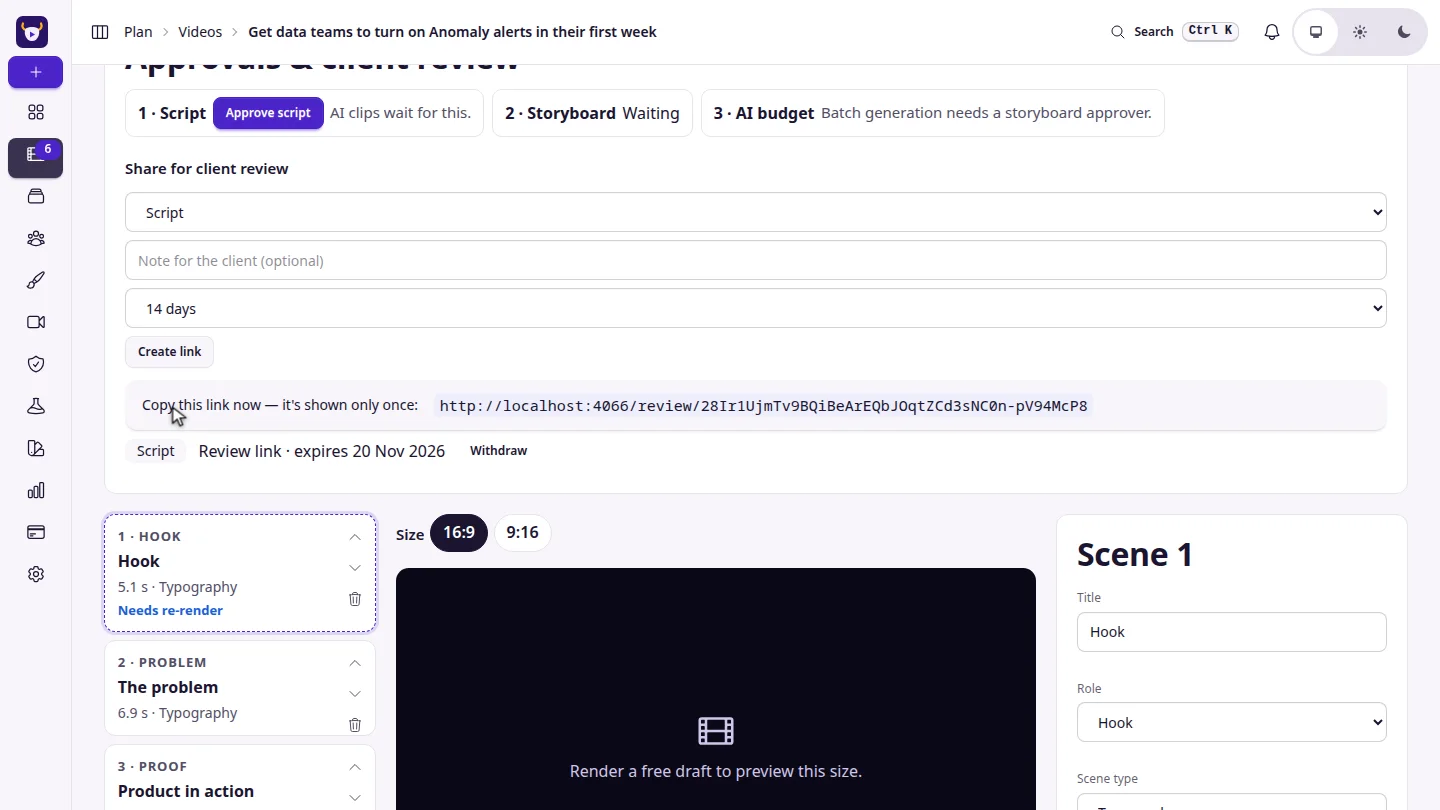
In the Director, choose Script under Share for client review and create a link. Copy it — it's shown only once.
Your client reads it, adds their name, and approves or requests changes.
Steps
Create a review link ▶ 0:04
Open the video. Under Approvals & client review, choose Script, Storyboard or Latest draft, pick an expiry and select Create link. Copy the link and send it to your client.
Your client decides ▶ 0:13
The client opens the link, enters their name and selects Approve or Request changes with a comment. No account is needed.
Next steps
Updated 2026-11-06
client approval review link script approval storyboard approval checkpoints