How to approve a claim against evidence in YakVid
Final renders are blocked while a material claim is unverified. Link each claim to an approved, fresh source so your video only says what you can back up.
Before you start
- Claim approval permission (Owner, Reviewer or Client approver)
Plays silently with captions; the narrated version is on its way.
Transcript
Approve what your video claims, backed by a source.
Open the campaign's Evidence and claims page, then approve the source after you've checked it.
Link the source to the claim and select Approve.
Steps
Approve the source ▶ 0:05
Open Evidence & claims and select Approve source on the evidence you checked.
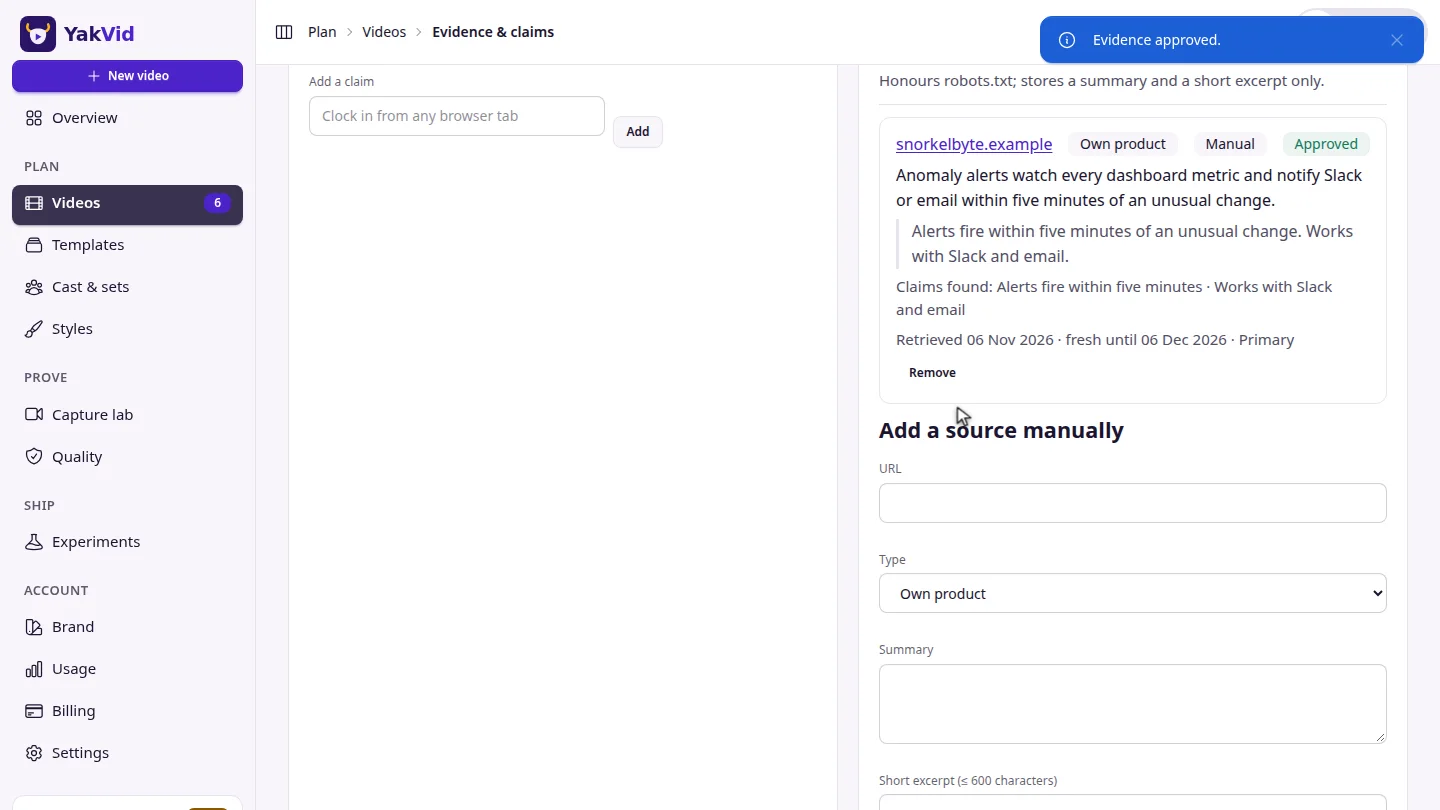
Approve the claim ▶ 0:12
Choose the source in Link a source…, then select Approve.
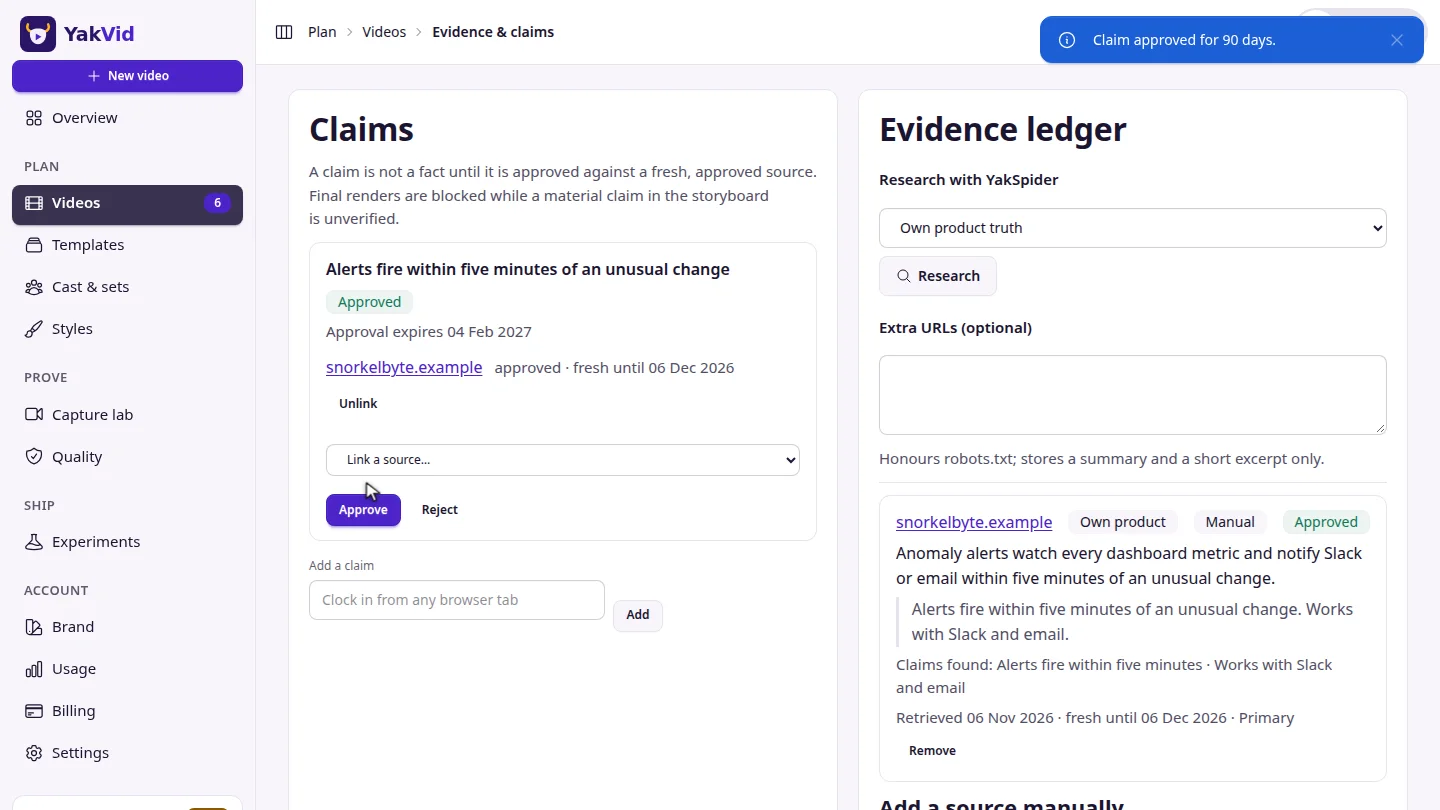
ResultThe claim shows Approved with its source and an expiry date.
Next steps
Updated 2026-11-06
claims evidence verification compliance